Academic documents and My eQuals
Use the document that answers the recipient's question: current enrolment, course results, qualification completion or the final award. These are separate records.
Choose the right document
| What you need to show | Document to look for |
|---|---|
| Current study and enrolment | Confirmation of Enrolment in the Student Portal; ask Massey if the recipient needs different wording |
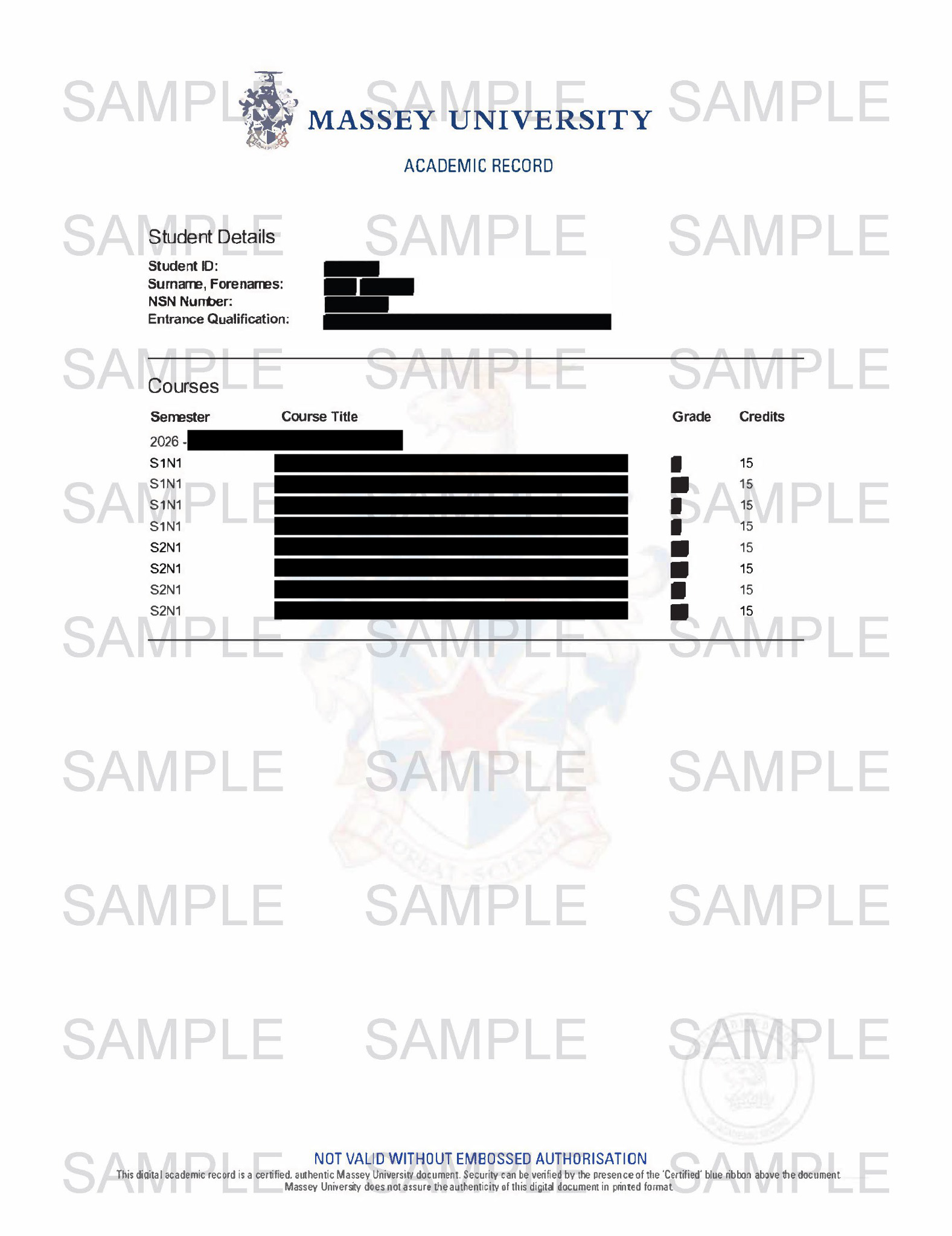
| Courses and official results | Academic Record, also called an academic transcript |
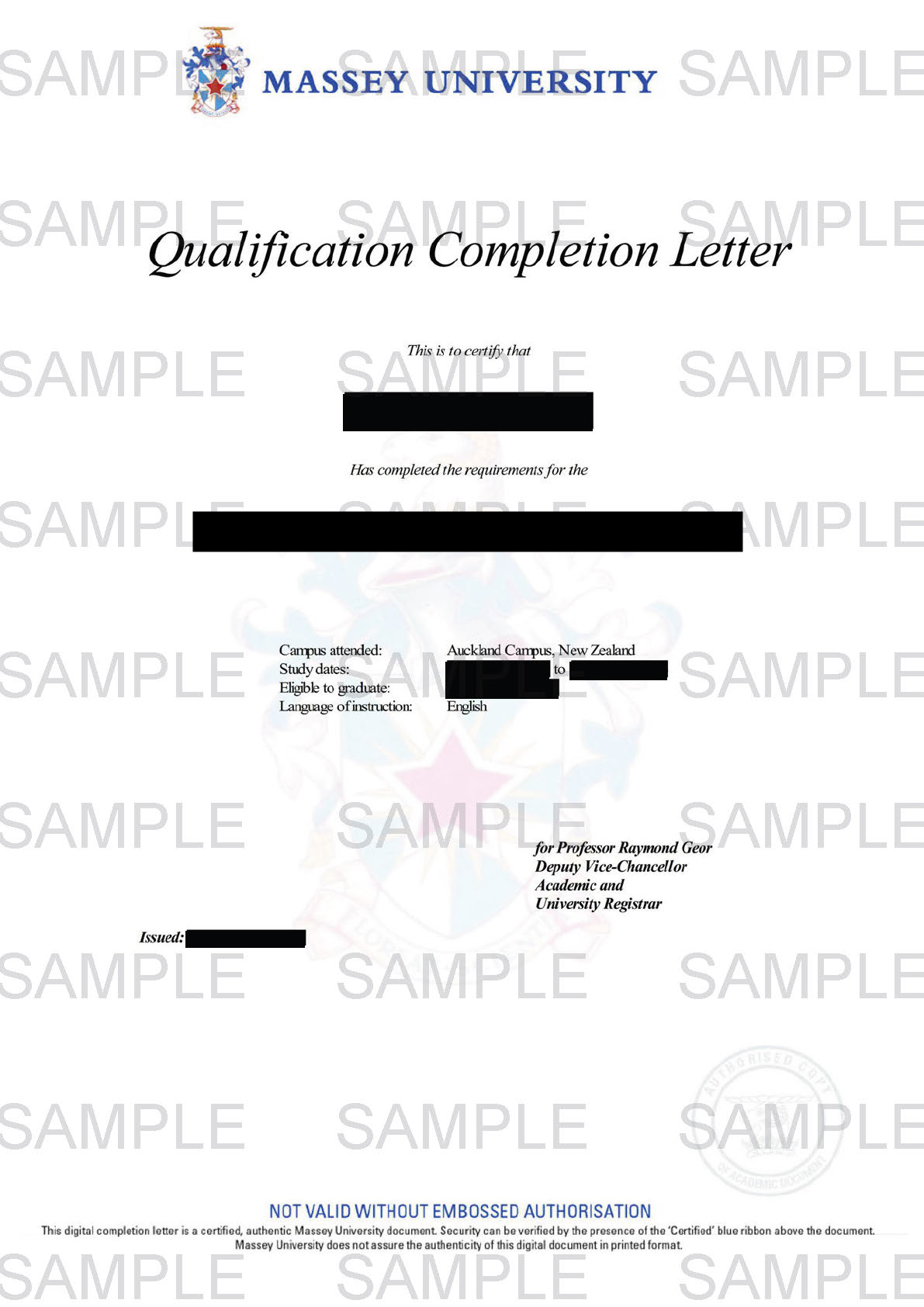
| Completion of a qualification | Qualification Completion Letter, once Massey confirms eligibility |
| The qualification awarded at graduation | Graduation Certificate |
Check the required issue date, format and recipient before ordering. A Stream marks screenshot is useful for checking progress; request the official record when an application asks for one.
Order your academic record or completion letter
- Wait for official results to be released so completed courses do not appear without grades.
- Sign in to the Student Portal and open Results and exams.
- Follow Order academic documents, choose the document and digital option offered, and review the order before submitting it.
- Watch for the notification explaining how to access the issued document in My eQuals. Keep the order confirmation if you need to follow up.
Massey provides certified digital academic records and completion letters free through My eQuals. A completion letter depends on qualification completion checks; it cannot be issued for a Certificate of Proficiency. See Massey's document instructions.
Activate and access My eQuals
- Open the invitation sent when your documents are issued and follow its registration link.
- Register using the email address associated with that invitation and complete the verification requested.
- Return to the My eQuals learner portal and use the same registered email and password. A Massey login does not automatically activate a separate My eQuals account.
- Open Documents and check the name, qualification and issue details on each item. If an item is missing, revisit the notification link, then ask Massey to check its issue status.
For password recovery use Can't Sign In? with your registered address. Follow the official learner FAQs if you need to link another email or an existing account. Do this before losing access to an old address.
Share a document with an employer or university
- Open the document, or find it in Documents, and select Share.
- Use Email share for a specific recipient. Use Organisation share if the receiving organisation is listed and requests that route.
- If an application form needs a link, choose the appropriate web-link share. For a PIN-protected link, the official guide calls this Public on the web securely.
- Set the PIN, expiry and download permission offered for your share. Copy the generated link and send the PIN separately when required.
- Use Sharing to review access and disable a share when it is no longer needed. Disabling online access does not retrieve copies already downloaded.
Use the official illustrated PIN-sharing tutorial. Follow the recipient's requirements for a link or PDF; Massey recommends Adobe Acrobat Reader for authenticating its digital PDFs. Printing or editing a document does not preserve its digital verification.
Paper copies and corrections
For paper copies, Massey's route is Results and exams → Order academic documents → Submit my order → Order hard copy documents. Charges apply; check the current non-tuition fees and allow up to ten working days for preparation, plus delivery. Check collection arrangements before travelling.
Send missing-document or correction questions to contact@massey.ac.nz, with your student ID, document type and order details. The same ordering service covers Auckland, Manawatū and Wellington.
University document samples
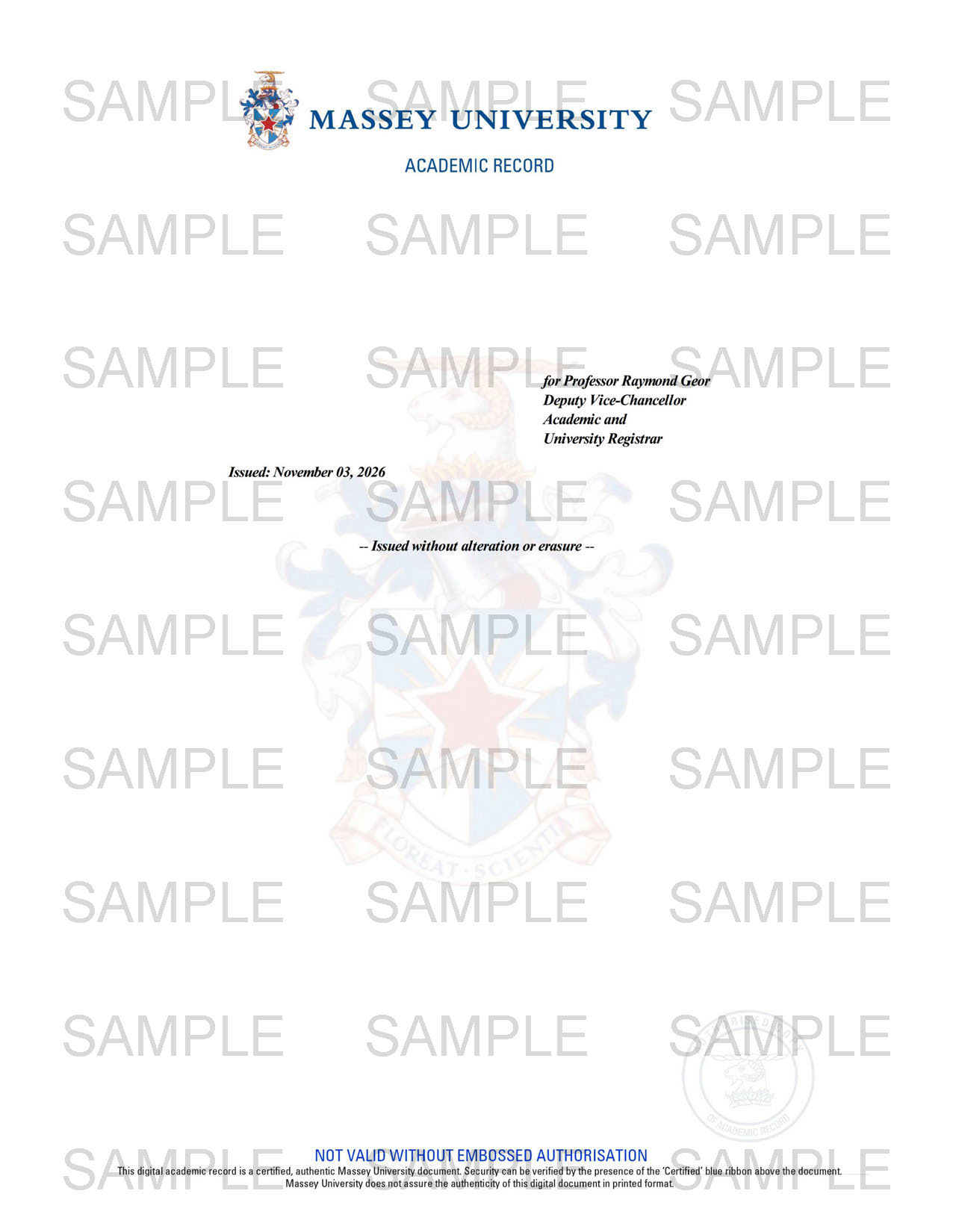
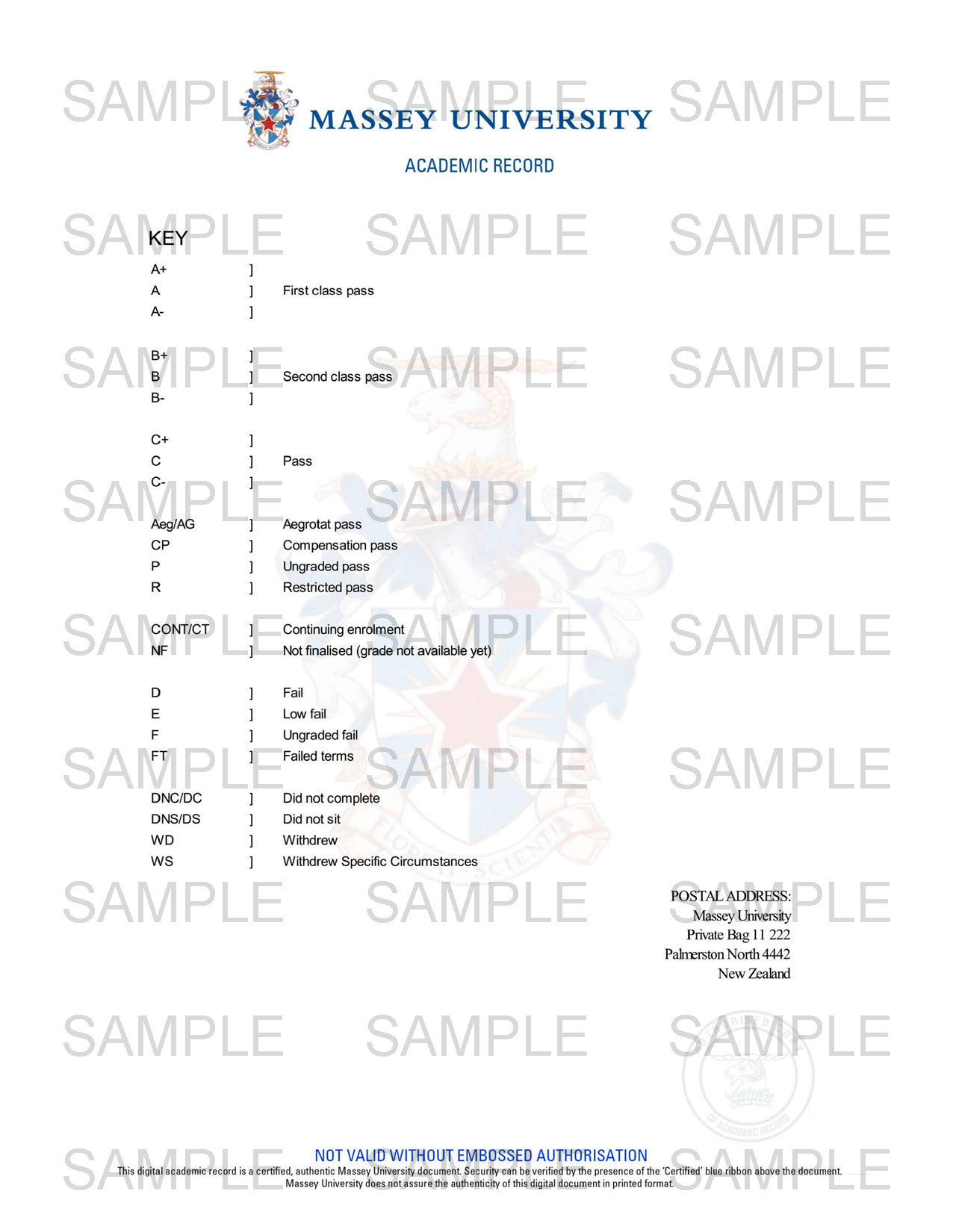
The samples below illustrate the university document format. Bradly supplied them; personal information, individual grades, qualification names, course codes and course names have been redacted. They are examples, not documents for use in an application.